

Alternate Title: True Confessions of a Web Admin
As I am sure most of you know, google is pushing for the entire web to use HTTPS / SSL. Even for brochure or marketing sites. And we definitely should be using SSL for anything that is sharing/collecting data, which describes most of our web projects I am guessing.
Certificates used to be expensive and time-consuming, require business verification, etc. Those type of certificates still exists, and you might even need one if you are creating the next Amazon, etc. Those certificates are known as OV (Organizational Validation) or EV (Extended Validation) certificates.
But for most of us, a DV (Domain Validation) certificate is all we need. Using one of a few methods of validation, we prove that we own the domain the certificate is being issued for. With that certificate we get the lock icon in the browser, google is happy, our clients are happy, everyone is happy!
And for those of you that have had wxPerts assist you with getting up and running with Web Servers, you probably know I have been recommending PositiveSSL for years for certificates. They are relatively cheap at $49 per year, with discounts for multiple years, and if cost were the only factor I would probably just keep on keeping on.
However new industry rules now only allow for 1 year certificates. If you are saying “But wait, I can still buy a 5-year certificate from PositiveSSL”. Well, sort of. They will offer a discount if you buy a “5-year” certificate, but they can only issue you 1 year at a time, so now you have to go through the renewal process once a year regardless.
The renewal process isn’t particularly difficult, but often the steps required are a bit confusing, the interface to Certificate authority is ever-changing, and when/if things go wrong, it can be a real challenge to get things back on track. And if you are running a single site, and only have to renew your certificate once a year, you just don’t do it enough to ever get comfortable at it.
Fortunately or unfortunately depending on your point of view, I assist enough of our clients that generally, I am renewing one or two certificates every month, so I have gotten fairly comfortable with the process, but even still I run into one or two challenges here or there, and the entire process is just a PITA for all involved.
Enter Let’s Encrypt. They have been issuing free certificates since 2016. The catch? They are only valid for 3 months. I have been aware of Let’s Encrypt for quite a while but for me, the last thing I wanted was to have to do something to renew my certificates every 3 months. So I never really dug too deep into it. Buying 2-5 year certificates was just a cost of doing business and worth the cost for the convenience of not having to deal with renewals very often. The new 1 year rule made that less true!
Enter Certbot. Certbot is a free open-source project started by the Electronic Frontier Foundation, that uses the ACME (Automatic Certificate Management Environment) protocol of Let’s Encrypt to automatically issue and renew certificates.
Now we are talking, Free certificates and Free software that automates the process! Fantastic, where do I sign up! Well, I gave you links above ;-). But let me warn you the process to get it all up and running isn’t for the faint of heart. You need to be comfortable with Web and Windows server management, it doesn’t hurt if you already have a working knowledge of the SSL process as well, and it is all command line based. Having a live chicken and a candle handy couldn’t hurt either 🙂
But never fear Uncle Pete is here and is happy to go down the path and hopefully knock down some of the weeds for you. In fact, I actually went down this path on May 31st, 2023. Some of you may have experienced an error on that day telling you the WinDev-US.com was expired. I was busy with other projects, screwed up, and let our renewal process slip past the expiration date. Cobblers shoes and all that 🙂 That was the final straw and I investigate and got Certbot and Let’s Encrypt going for WinDev-US.com.
I was waiting to publish write and publish this article until after the first renewal took place. Certbot automatically renews the certificates at the 60-day mark, giving you 30 days to correct things if something goes wrong. But we have another certificate expiring today, and we also had a client that needed a certificate so I move the schedule up. I promise to revisit this article and update it once the first renewal happens.
So enough rambling, let’s get on with it!
Step one is to go to https://certbot.eff.org/instructions. Choose your web server software and operating system. I am sure most of you can guess for wxPerts that means Apache and Windows. If you are using IIS, you will need to do some things differently but I am not your IIS guy 🙂 If you are using Linux, I am guessing you are fairly comfortable with command line and server stuff and will be fine on your own.
You will notice in the Important Notes section of this page it has the following information.
Certbot for Windows can currently obtain your certificate from Let’s Encrypt, but not install it into your web server application
What this means is that although Certbot can get and renew a certificate, it won’t set up the webserver software to use the certificate. That isn’t a big deal to me, setting up the virtual host entries for the certificate is a one-time thing and not difficult. For IIS you would need to do whatever you normally do when you setup an SSL for a site.
I won’t go through the install process with you, it is fairly straightforward, just make sure you do it with administrator rights as noted in Certbot’s instructions. Note: I installed mine copy to C:\CertBot, it defaults to program files, so you may notice some differences depending on where you install it.
Once you have installed Certbot on the server it is time to get a certificate. Already! You will notice in Certbot’s instructions that you can run it “standalone” meaning without a webserver, it actually stands its own up temporarily to do what it needs to get a certificate. But since I am running Apache, I will use the —webroot option instead. This means your webserver needs to be able to handle files from hidden directories. It will be placing files in the /.well-known folder which is a special folder used for certain web functions. Some Oauth systems use it as well. Anyway with my standard Apache setup I didn’t have to do anything special, your mileage may vary, especially if you are using IIS.
So you simply open a command line prompt, making sure it has administrator access, go to the directory Certbot is installed, and run the following command. Again your directory may be different.
C:\Certbot>certbot certonly --webroot
If this is your first time running Certbot, it will ask for an email, and a few more questions so it can create an account for you with Let’s Encrypt. I don’t have screenshots for that since I have already used Certbot on this server.
It will then ask you for the domain name(s) you want a certificate for. Note: With most certificate authorities with you request a certificate for a root domain, they automatically include the www. domain as well, but Let’s Encrypt does not, so if we want the www. domain to be supported as well we must include it!
I am doing a certificate for pcReminder.com, and also want it to cover http://www.pcreminder.com so I list both separated by a comma

Next, it asks for the webroot for the domain. What it is really asking is what is the physical location of the root folder for the domain so it can place the challenge files in the /.well-known folder under that. An easy way to determine that is to look at the vhost file and see what the DocumentRoot entry has.

Be sure to file the slashes around so they are correct for windows (/ becomes \) and do not include a trailing slash, so I entered C:\Sites\pcReminder\SITE\pcReminder\PCREMINDER_WEB\US

Because I entered two domains it now asks me if the 2nd domain has the same root directory or not.

It does so I answer 2. At this point, it tries to request the certificate from Let’s Encrypt. If there is a problem with the process you will get errors and have to address them. I got errors on my first attempt, was that unintended or did I do it on purpose just so I could show you the error process? I will never tell 🙂
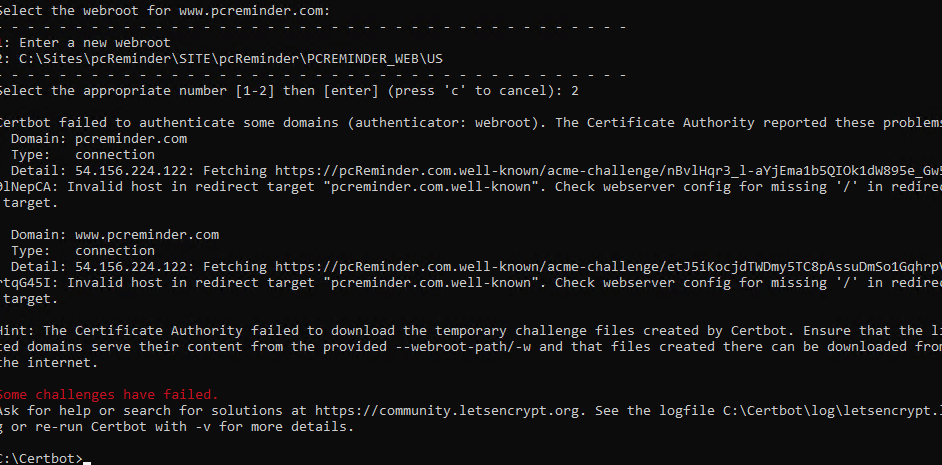
What that is telling me is that it wasn’t able to retrieve the challenge files, and if you notice it looks like it tries to retrieve them without a / after the .com. I went down this same road when I did the certificate for windev-us.com, so I already knew what the issue was. First, it tries to make the request to HTTP, not HTTPS, because if you don’t have a certificate already you wouldn’t be able to have HTTPS. In this case I already had a certificate, and once I set up a site with SSL I always add a permanent redirect to force it to the SSL site. Looking at the vhost for the site we see this redirect

It needs a trailing /, so I fixed that, restarted Apache and went through the Certbot steps again. And this time everything was sucessful
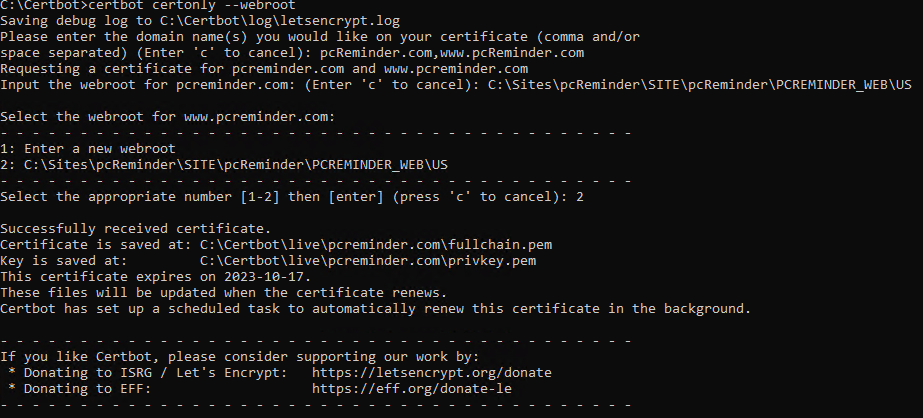
Notice it tells me that my certificate and key are in the C:\Certbot\live\pcreminder.com folder. If we look at that folder we will see there are a number of files.

Now we just need to update our vhost settings on Apache. This is what the 443 entry looks like for that domain after my adjustments.

The three lines in question are and you will note they now point to files in the directory mentioned above.
    SSLCertificateFile "C:\Certbot\live\pcreminder.com\cert.pem"
    SSLCertificateKeyFile "C:\Certbot\live\pcreminder.com\privkey.pem"
    SSLCertificateChainFile "C:\Certbot\live\pcreminder.com\chain.pem"
After restarting Apache, we can check the site and see that the certificate is indeed the new one.

It is from Let’s Encrypt and expires in 90 days. That it! Certbot should now automatically renew the certificate in 90 days and I should never have to worry about certificates for pcReminder ever again!
One last step is to verify that Certbot is indeed all set up to handle the renewal. Back on that Cerbot instruction page, it tells us how to do that. We run the following command and see that everything is good to go.
C:\Certbot>certbot renew --dry-run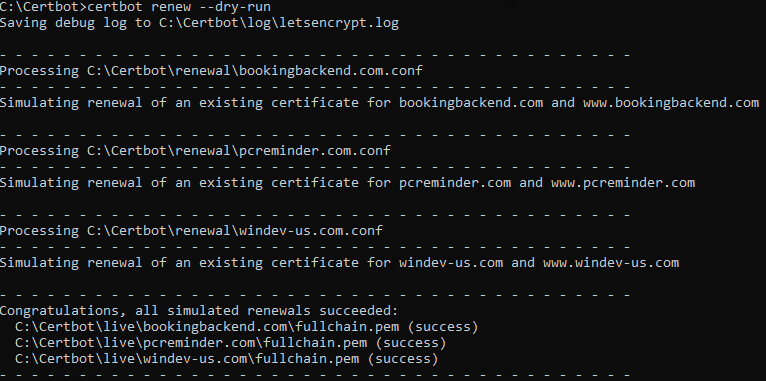
If you get any errors from the renewal test or want to do any other advanced things you will likely need to make adjustments to the config files for each certificate under the Certbot folder. But that is beyond the scope of this article.
Note: as mentioned at the beginning of this article I have yet to have gone through a “real” renewal. I am fairly confident that the renewal process itself will work fine and it will indeed get a new certificate when the time comes. What I am less clear about is if Apache will begin serving the new certificate without needing to be restarted first.
I will know that answer in a couple of weeks when the WinDev-US certificate renews. Once it does I will update this article accordingly.
Update
I am happy to report that indeed Certbot automatically renewed our Windev-US.com certificate without any intervention from me, and the site shows the new certificate is active.

 wxBlog - All things wx – Covering pcSoft products (WINDEV, WEBDEV, WINDEV Mobile)
Hi Pete:
I tried to use Let’s Encrypt via the certbot, but the link for the exe is not valid anymore.
Do you have the certbot.exe to share?, Or have you used the new option that WEBDEV Application server has to install Let’s Encrypt certificates?
Thanks
Andrés Sánchez
México
LikeLike
Unfortunately Certbot has chosen to discontinue support for Windows. I think all of the installer issues that Windows has introduce in the last few years made it hard for them to maintain it as a viable opensource solution. The link below is to their announcement and they offer some alternative applications for windows users.
https://community.letsencrypt.org/t/certbot-discontinuing-windows-beta-support-in-2024/208101
I have not investigated any of those alternatives, as with most of the information we share, it is the result of something a client had us investigate/develop and allowed us to share or something we needed for our own purposes. Currently most of our production sites we have transitioned to using Amazon WAF (Web Application Fire) and as a result of that our certificates are generated from Amazon, eliminating the need for Certbot. We do have other sites that are still using Certbot running the 4.0 Windows beta, and it still functions, so there hasn’t been a priority reason for us to investigate on of the other solutions yet. They seem to have removed all links to the windows beta so I am not sure where to point you for a download.
LikeLike