

One of the great new features in v2024 is the ability to have multiple Analysesin a single project. It has many uses, but it was the perfect solution to a need we had this week.
Multiple Analysis in a project has quite a few different uses. The obvious use is when you need to connect to multiple databases. We have always solved that by having custom folders in the analysis and then changing the connection for a specific folder
HChangeConnection(FolderName,ConnectionVarialbe)But this requires everything to be in a single analysis. In a corporate environment, you might have a few different databases that you need to connect to for various applications. And have needs for some cross-integration between the databases for some needs. In fact, one of our clients has that exact scenario and we currently have solved that by copying the definition of the few tables we need, into the other analysis. The downside is we now have two definitions to maintain anytime the table is changed. We will now be able to just share the other analysis via the SCM and only have 1 definition to maintain.
But that isn’t the solution I wanted to discuss today. Today’s solution is to solve a more unique need. We have a client that is using our Quickbooks API to create a core accounting application so that no one other than the accounts actually has to use Quickbooks. To this, they extended it with their custom sales and inventory process. So we have a database with some tables that are standalone, plus some that are extensions for additional information we want to associate with QB objects, like additional Inventory information or info on the invoice, such as integration of our FedEx shipping into the invoice.
Anyway, now enters the challenge. This client has a friend with a completely separate business in a different industry, they decided to share the core application, but each be able to extend it with pieces specific to their industry. This means we have many core tables, screens, and classes that are the same. But each has additional tables, screens, and classes specific to them.
At first, we tried doing it as one project shared via the SCM, but it soon became clear that it was going to be hard to manage that way, even with multiple configurations. We needed a DMZ (demilitarized zone) so there was a clear separation between the 2 products and the core portion of the application.
So we created 2 separate projects and shared all the windows, classes, etc. that are part of the core product via the SCM. We tried both sharing a single Analysis with all the DB tables in it via the SCM. And we tried each having their own Analysis. Neither option was perfect. In the former, we had several extra tables (from the other project) that were not used making it difficult to organize, especially since each had tables for doing Quotes, which needed to be named differently to avoid conflicts. The latter, creating double maintenance anytime a core table was modified.
Now that we have moved to v2024 and can have multiple Analyses, we have reworked our approach. Now there is an Analysis that has all the tables that are part of the core application and that analysis along with its windows, classes etc. is shared via the SCM. And then there is another analysis for the tables specific to the particular project that isn’t shared, along with its screens and classes.
If you are thinking but wait I wouldn’t want 2 different databases for one application. Don’t worry, that is the really cool part, because we change the connection for each using the same connection variable, all the tables, both the core and the additional tables, live in the same database. So now we can have 2 databases, one for each project, each with many identical tables, but also each with tables that only exist in that specific database.
This article is more about the concept of one use for multiple Analyses than any specific code but I will show you a few pieces of the code and the IDE to help get you inspired.
First in the Project Description that Analysis area has now become a table, which allows us to add more than one Analysis to the project, or more importantly share it via the SCM!
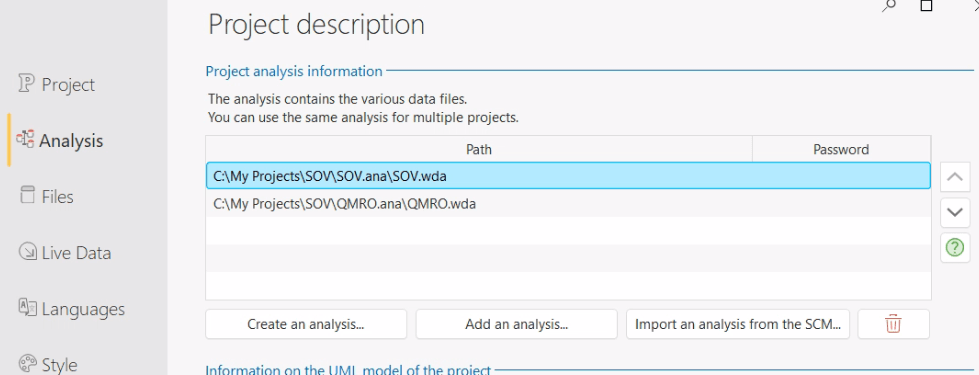
And once you have multiple Analyses, then there is a combo on the Analysis tab to let you select the analysis you wish to see or work on
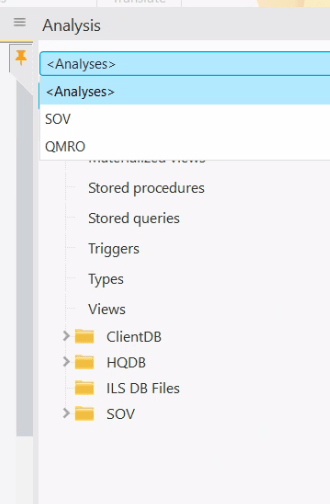
But also of interest, notice if you select Analyses from that combo, what you see is actually a merged representation of both Analyses. The SOV folder is coming from the SOV Analysis, while the other folders are from the core Analysis (QMRO).
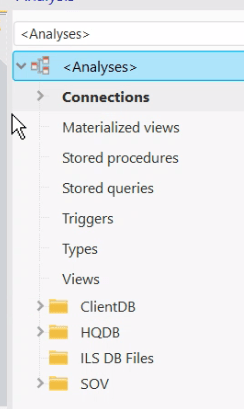
This also gives me a hint as to how things are working under the covers. I believe what happens is as far as your application is concerned there is only one analysis, and if you do something like
HChangeConnection(*,ConnectionVarialbe)
you are changing the connection for all the tables in all of the analyses. I haven’t fully tested that out, but I did run into issues when both analyses contained the same custom folder name, and a few other oddities that lead me to believe I am correct.
So in the code, I just define my connection variable and then use it to change the connection on both the core (ClientDB) and the project specific analysis (SOV in this case)
IF NOT HChangeConnection(ClientDB,ClientConnection) THEN

	Info("Client DB Connection Failed: " + HErrorInfo(hErrFullDetails))

END


<COMPILE IF Configuration="SOV For Windows">

	IF NOT HChangeConnection(SOV,ClientConnection)

		Info("Client DB Connection Failed: " + HErrorInfo(hErrFullDetails))

	END

<END>
The reason for the Compiler directive is this is global code shared via the SCM with each project, and we only want the SOV connection happening in the SOV project.
That is more or less all we had to do to create a much cleaner solution to our unique needs. This feature alone would make the v2024 upgrade worth it for me. I will keep you updated as I use it for other things, like cleaning up the project for the other client I mentioned above where we have multiple databases with some cross integration in certain applications.
Not Quite Perfect just yet
This wouldn’t be an Uncle Pete post without me wanting more, would it? From my testing, I couldn’t find a way to change the connection for only one specific Analysis. So as far as I can tell, to use this technique you need to have your tables in a custom folder in the analysis, and make sure not to use the same folder name in other analyses. So that you can change the connection of just that analysis, instead of having to manage custom folders in the analysis. Something like this
HChangeConnection(AnalysisName,ConnectionVarialbe) wxBlog - All things wx – Covering pcSoft products (WINDEV, WEBDEV, WINDEV Mobile)