
One of our clients asked for some assistance with adding a text field to a report that autogrows with the amount of text to print. I figured it would be a good time to also include some basics of creating reports, especially when working for the wxFileManager
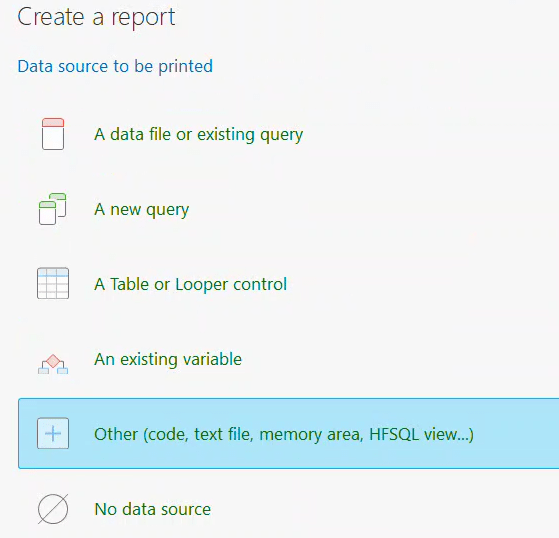
In the Create a Report Wizard, I start by selecting “Other” as the Data source for the report. This is how I generally do reports, even in projects that don’t use the wxFileManager as I feel it gives me more control over the behavior of the report and how it loops through and processes the data.
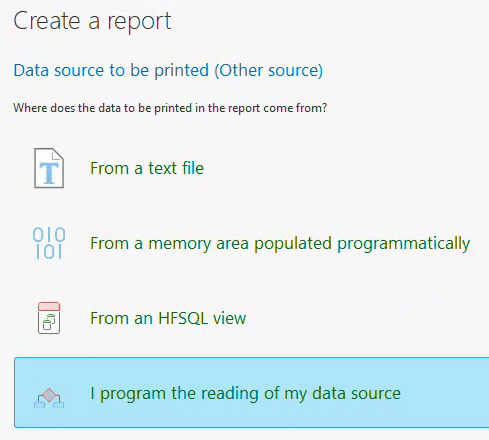
This brings up a second question, where I select “I program the reading of my data source” I would say something about the grammar of that phrase, but I am sure most would agree, that I should be the last person trying to be the Grammar Police 🙂
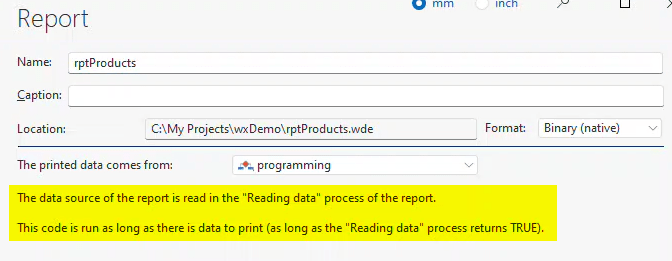
Once the report is created if you look at the Data tab of the report description, we see that the data comes from has been set to programming, and it even gives us hints to how the report should be coded, which I have highlighted in yellow.
In the Open Event of the code (Equivalent to the Global Event for windows) I place the following code
PROCEDURE rptProducts()

mgrProduct is ProductManager
mgrProduct.Orderby = "Order By ProductCode"
mgrProduct.FetchData()

recProduct	is Product

Counter		is int
The first set of statements creates an instance of our wxFileManager for the Product table and populates it with all the records in the Product table sorted by Product Code. Then we create an instance of the record class for the Product table and finally a Counter variable which you will see its use shortly.
In the Read data event, I have this code
Counter++
IF Counter <= mgrProduct.arrRec.Count() THEN
	recProduct = mgrProduct.arrRec[Counter]
	RESULT True
ELSE
	RESULT False
END
As hinted to by the help text on the data tab, the Read data event repeatedly fires, and each time it returns a true the Body block is printed and the report loops and fires the event again. Once the event returns a false, the body block is not printed and the report is completed.
In my code, you can see I increment my counter with each pass, and if the counter is less than or equal to the number of records in the array of our wxManagerClass then I populate the record class with the correct element from the array and return a true, otherwise I return a false to complete the report
From there we just do the normal WINDEV/WEBDEV report work. I added some statics to the Body block and bound them to the appropriate member in our Record class
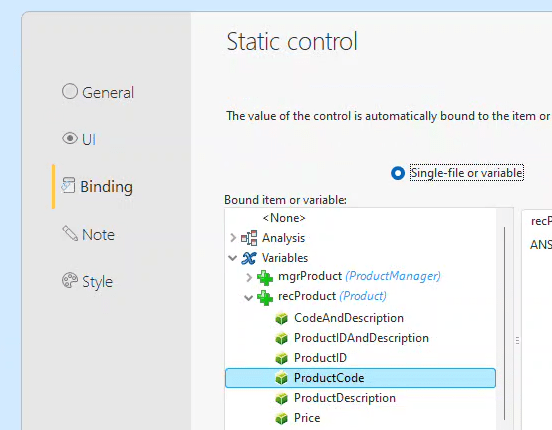
At this point, we have a basic report using the wxFileManager class. So now let’s look at how I add the Long Description as text that automatically grows as needed.
First I add an iteration block.

On that block, I add a static bound to the Long Description. And I add the following code to the After printing Body event.
IF NoSpace(recProduct.LongDescription) <> NoSpace(recProduct.ProductDescription) AND NoSpace(recProduct.LongDescription <> "") THEN
	iPrintBlock(blkLongDescription)
END
This code only prints the new block if there is a value in the Long Description that doesn’t match the Product Description
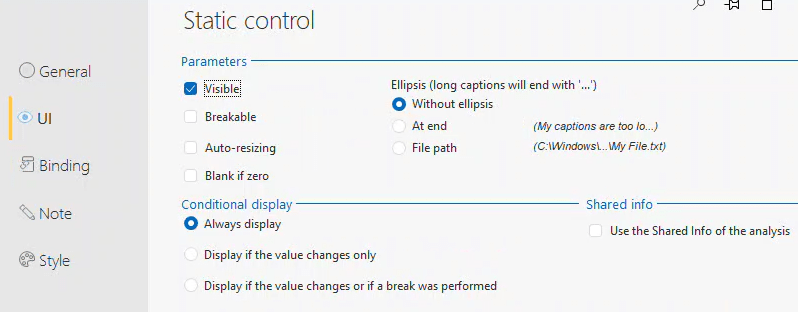
If we were to run the report at this stage, we would only see one line of text from the Long Descriptions. The key to that is on the UI tab of the description of the static
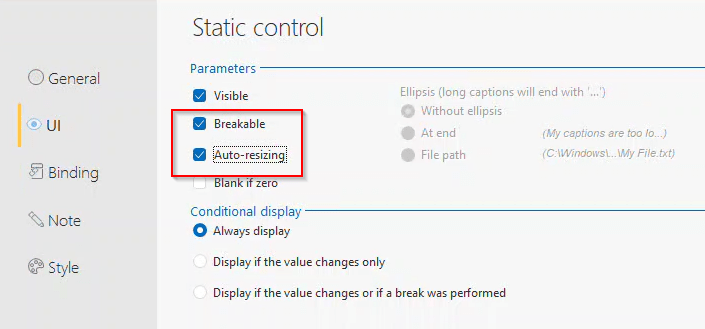
If we check the Auto-resizing option then the Breakable option is also automatically turned on and the Ellipsis options are disabled.
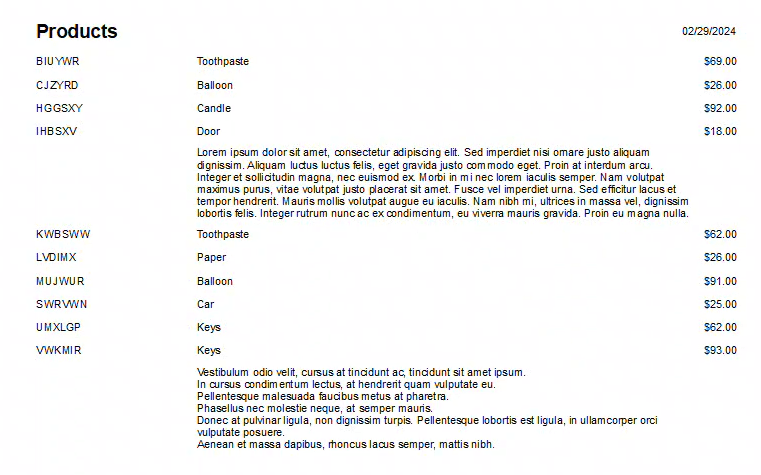
Now if we print the report, the long description blocks grow to print all the text in the long descriptions without using any extra space when the descriptions don’t exist or are shorter.
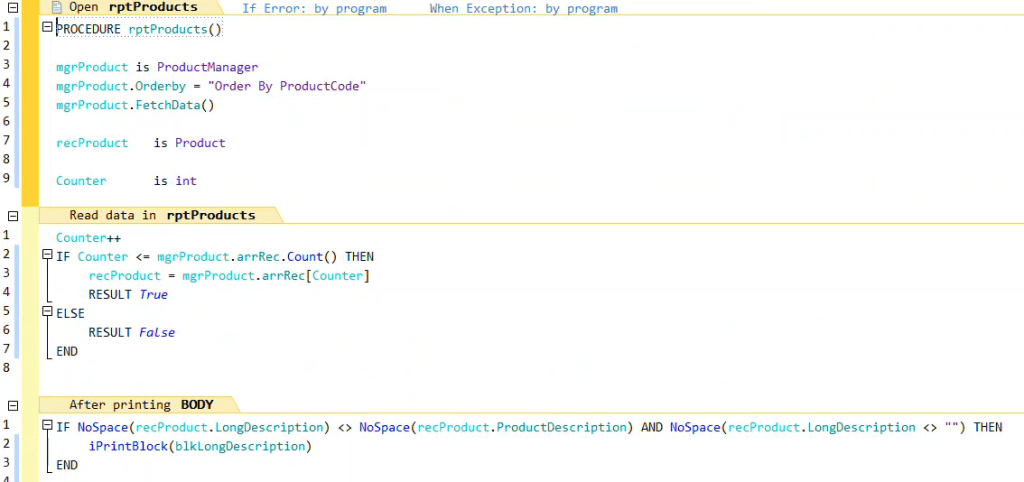
Here is all the code of the report
This report is included in our wxDemo project which you can download via the dropbox link https://www.dropbox.com/scl/fi/09usl9nfc6d0sp8psknbe/wxDemo_v2024.ZIP?rlkey=3jcmratbdyoqirsrcop63v91c&dl=0
 wxBlog - All things wx – Covering pcSoft products (WINDEV, WEBDEV, WINDEV Mobile)