
Just a few days ago I did an example of file uploading for WebDev. And then yesterday I did some work for another client on our Amazon S3 classes to support filenames with special characters in them. And now today those 2 subjects come together in this article because we have discovered an issue with the File upload logic of WEBDEV
If the file the user selects to upload contains a ; (semicolon) then WEBDEV generates an error when you upload the file. This occurs with both the Multifile Upload as well as the Upload Edit Control.
With the Upload Edit Control, I can somewhat see what the issue is because the value of the edit control contains both the original file name as well as the temporary filename WEBDEV created on the server. These filenames are delimited by a ;.

So the issue is when the code tries to extract the file names the ; in the file name causes the filenames not to be extracted correctly.
The failure happens at the UploadCopyFile command, but as you can see the issues actually shows up in the UploadFileName command as well

I can’t see where the error in the multifile upload is because it crashes on the browser side before my server code fires but I suspect the issues are very similar. In this instance, the error is a popup message on the browser with a bunch of HTML formatting.
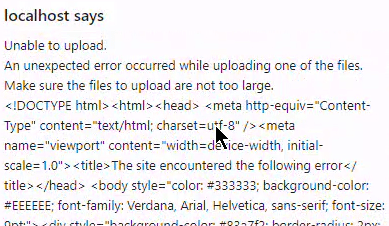
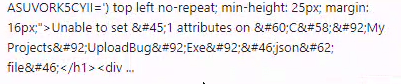
It is hard to read because of all the HTML formatting but it says: Unable to upload. An unexpected error occurred while uploading one of the files. Make sure the files to upload are not too large. (Then a bunch of html coding) and then Unable to set attributes on (and then a portion of the file name)
Hopefully, this could be easily corrected by using a character such as the | (pipe) for the separation, which isn’t allowed in filenames and would not cause the issue. Unfortunately, this isn’t anything I can code as a workaround other than forcing the user to rename their files.
Note: The Example Project showing this issue can be downloaded via the Dropbox link
https://www.dropbox.com/scl/fi/qh8jo3nq063s5i3tl2ige/Backup_UploadBug.ZIP?
Steps to reproduce the issue:
Run the test page.
Use any of the 3 upload controls to upload a file called test.pdf (or anything without a 😉 and it will place the file in the C:\temp\upload directory.
It will fail if you use any of the 3 uploaded to upload a file called test;.pdf (or anything with a ;).
 wxBlog - All things wx – Covering pcSoft products (WINDEV, WEBDEV, WINDEV Mobile)