
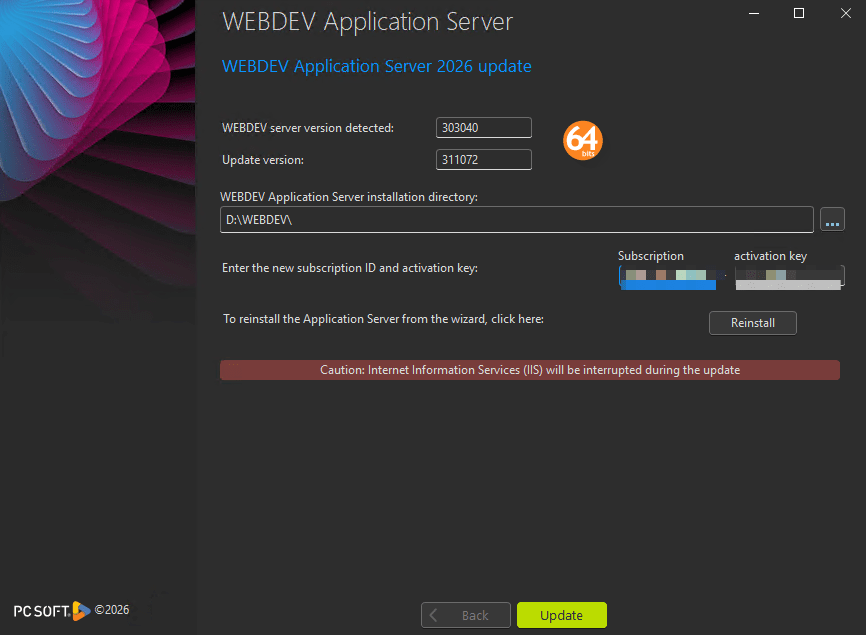
Some folks are experiencing issues with the license verification when upgrading their Web Application Servers (WAS) to v2026. I have been working with support on this issue, and with their assistance we have a workaround for now.
The Issue
Support believes the issue stems from the licensing process not getting a valid MAC address for certain virtual machines. And for the record, the client I have ran into the issue with was AWS EC2 instances running Apache 2.4. Because as anyone that has ever asked Uncle Pete to help with a WAS implementation that is the AWS and Apache is the only way I roll 🙂 But the strange thing is we had 3 servers, all configured identically and 2 had the issue 1 did not so I am not sure exactly what leads to the issue.
What happens, is during the update after entering your subscription and activation key
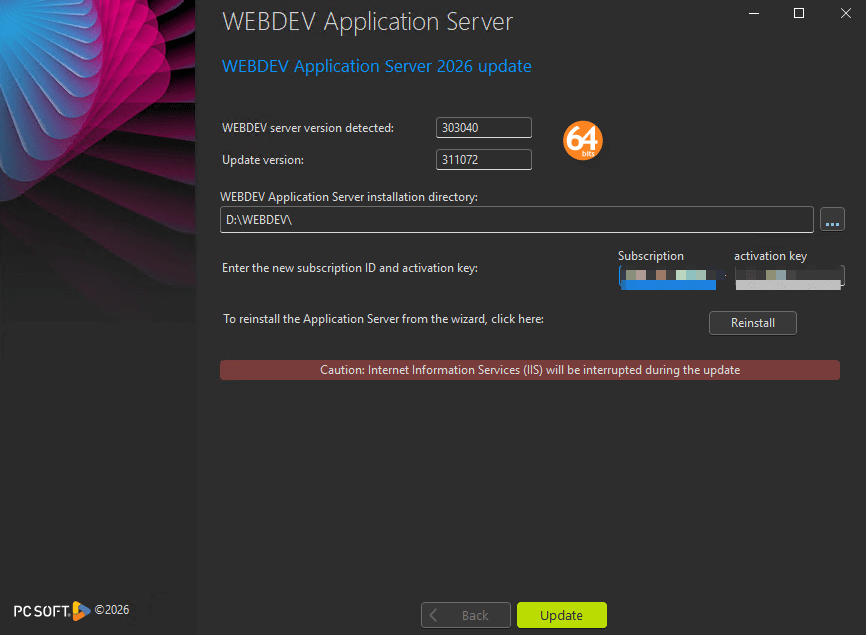
After pressing update, we see a brief flash of a screen (I think that is the normal update progress screen) but then immediately we get this error
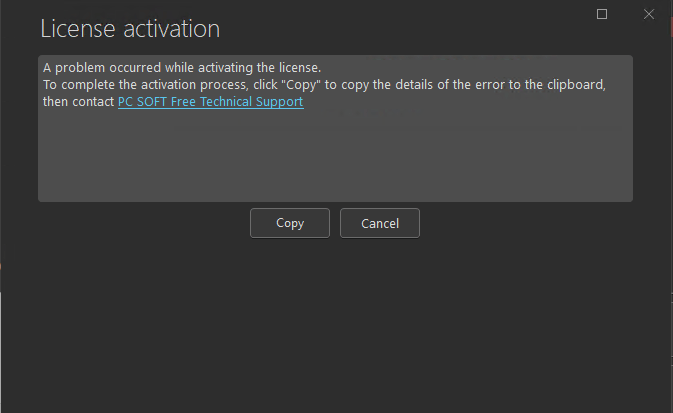
And if you look at what in in the clipboard when you press copy it is this
! Une erreur interne est survenue lors de l'activation de la licence :! <empreinte_mb() : empty>! Licence non activée.
The Work Around
At that point your only option is cancel which stops the update. And with the help of support we were able to come up with this work around.
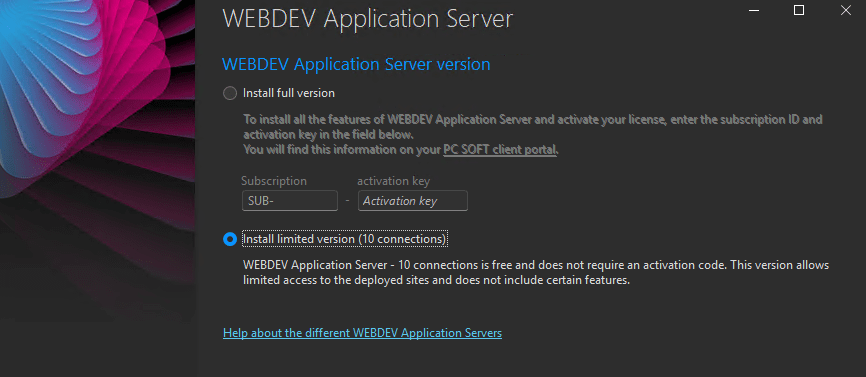
Run the install again, but to to install WAS 2026 separately
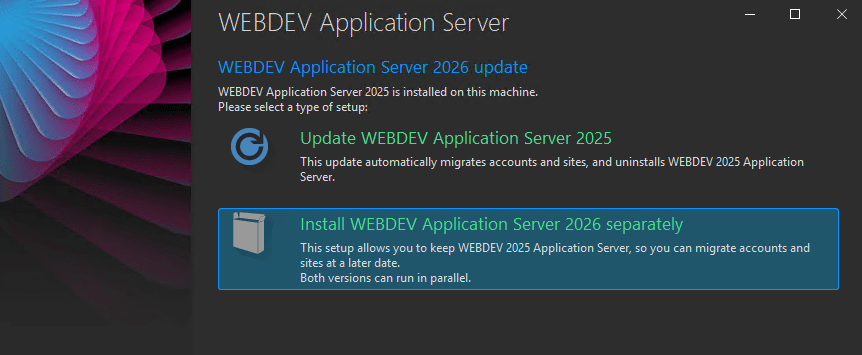
And this is the key! Don’t try the full version here, it will fail the same as the update, instead just the 10 connection version.
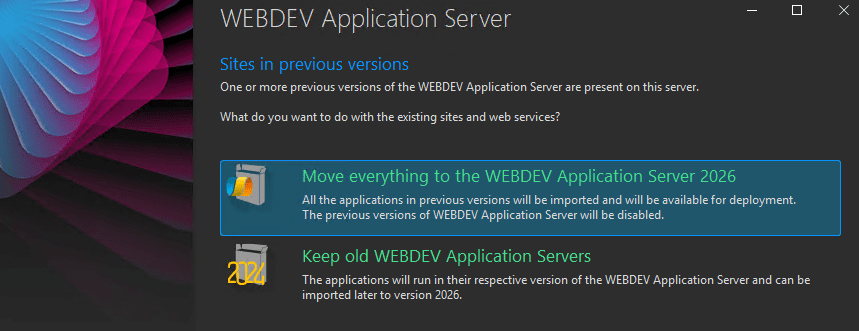
After agreeing to the license, we get the option to move everything to the WAS 2026, so even though we choose separate install we still get the option to upgrade.
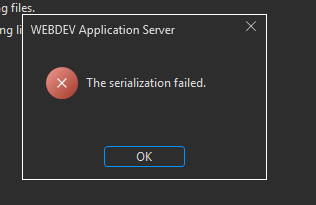
Next are a number of screens that are standard update screens, I didn’t bother to show, as they are the normal screens you see during import. When all done you will get this error but don’t panic, we will resolve it momentarily.
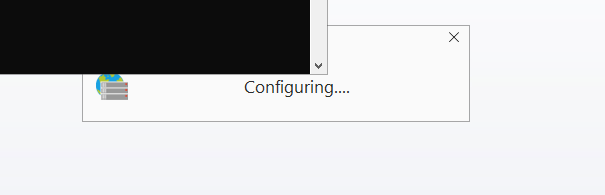
And if you are using Apache you will see a number of irriating screens that flash between a command window and a screen saying it is configuring apache. Depending on how many websites you have on the server there may be quite a few of these. Don’t panic eventually they will stop.
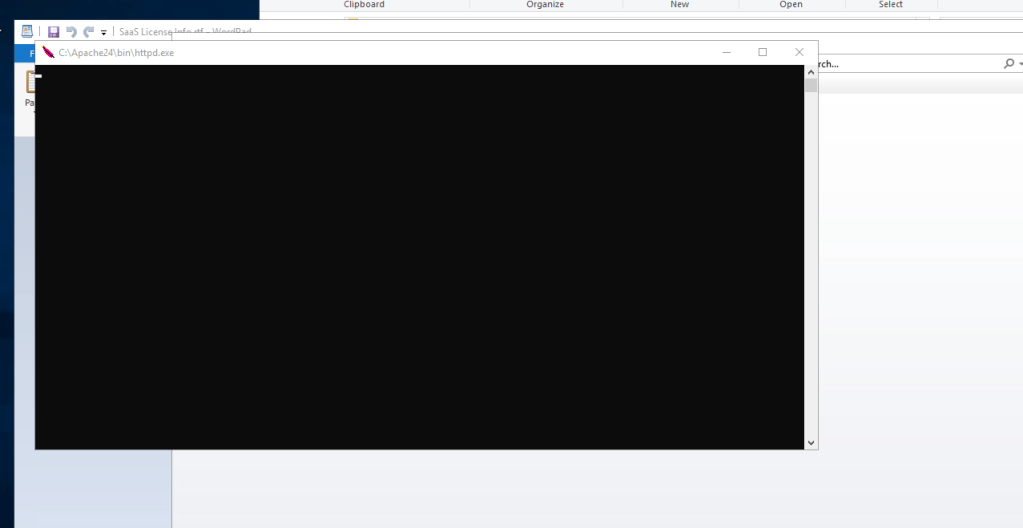
And when they do you will get this message, again we will resolve that momentarily
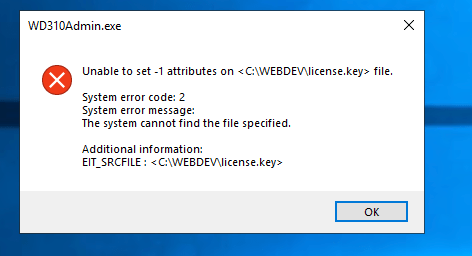
After pressing OK, the WAS Admin screen comes up and you will see the 10 user version is installed, and you have an activate link.

When you click activate, you will get this screen, click the Generate request button.
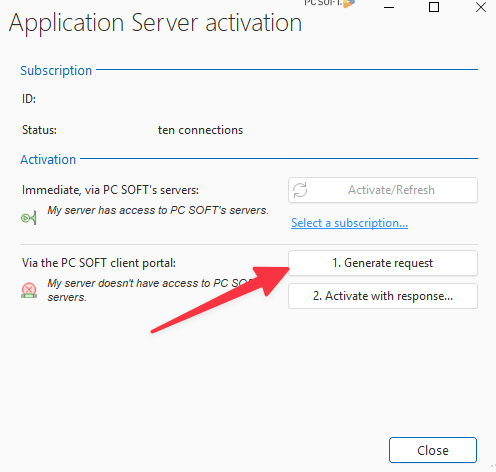
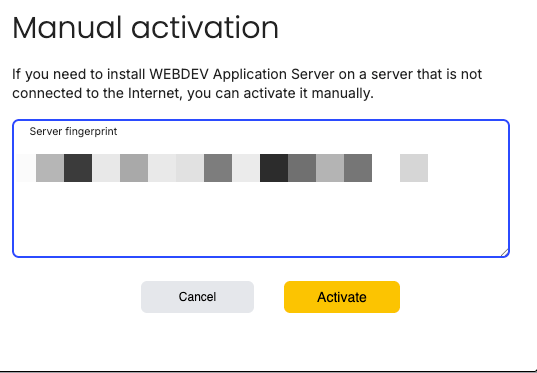
Which will copy a finger print into your clipboard, I want include a sample of it as it has a lot of private info in it, but it is a simple JSON string
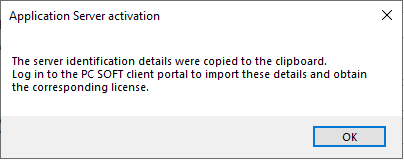
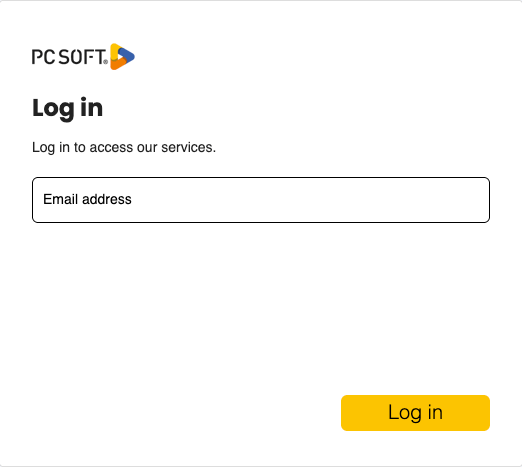
Now head over the the PCSOFT portal at https://login.windev.com/ and log in.
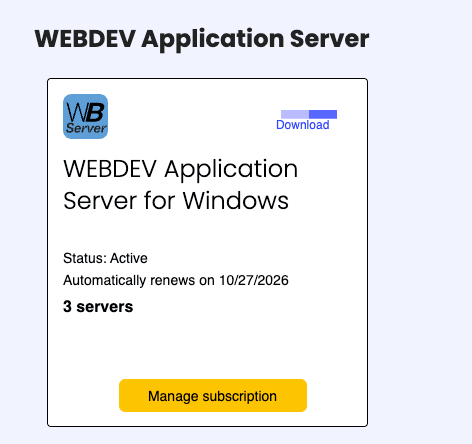
Then manage your WAS subscriptions
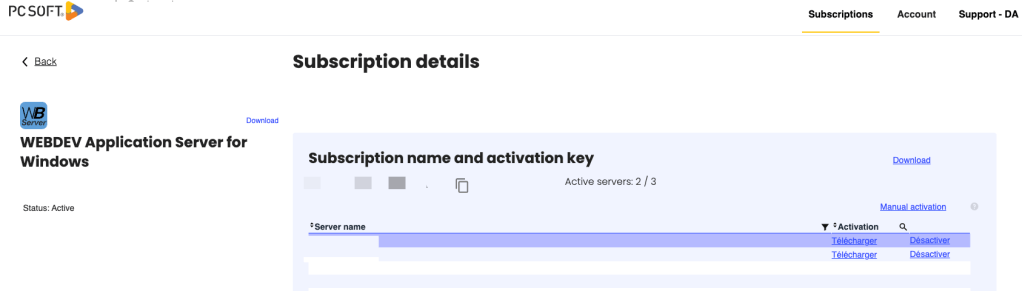
And on the next screen click on Manual Activation
And then paste the finger print text we got early and click activate
The first server I did this on the subscription screen did not update, but when I did it for the second one it did, so if your screen doesn’t update just back out of it and then go back into manage subscriptions. But eventually you should see your new server in the list, with a link with the french word for download, because PCSOFT is secreting trying to force us to learn French :-). Click that and download the file

That will download a file that will be your server name (WSIWAS in our case) .key.
On the first server I had to upload that file to the WAS server into the WEBDEV directory and rename the file to license.key.

Then restart the server service, again in French 🙂

But on the second server, the .key file I got was BASE64 encoded, and this time I had to instead click on the activate with response button in the WAS Admin Activate screen, and select the license file.
Which ever method you end up having to use, when done you should be up and running with the unlimited version.

I believe PCSOFT is working on a resolution as we speak, which is why I had some differences in behavior from the first server to the second server.
 wxBlog - All things wx – Covering pcSoft products (WINDEV, WEBDEV, WINDEV Mobile)